


TEOS Manage 3.5 at a glance

Meet TEOS 3.5. Smarter. Flexible. Connected.
Manage your devices, signage, and content from one place. Now with an AI-powered assistant in MS Teams that handles admin, bookings, and content for you, plus synchronized playback across all your screens. Backed by broader vendor support and an API that gives you deeper visibility into device status, licenses, and stats.
TEOS Teams Agent
Manage your workplace without ever leaving MS Teams, the app your team already uses every day. The new TEOS Teams Agent, an AI-powered assistant built into Teams and powered by OpenAI and TEOS, lets you check device status in real time, manage licenses and schedules, automate routine tasks, and create or update content, all from a single chat. Connected to the TEOS Manage API, it also takes care of admin tasks, room bookings, and event content for you.

One platform, any hardware
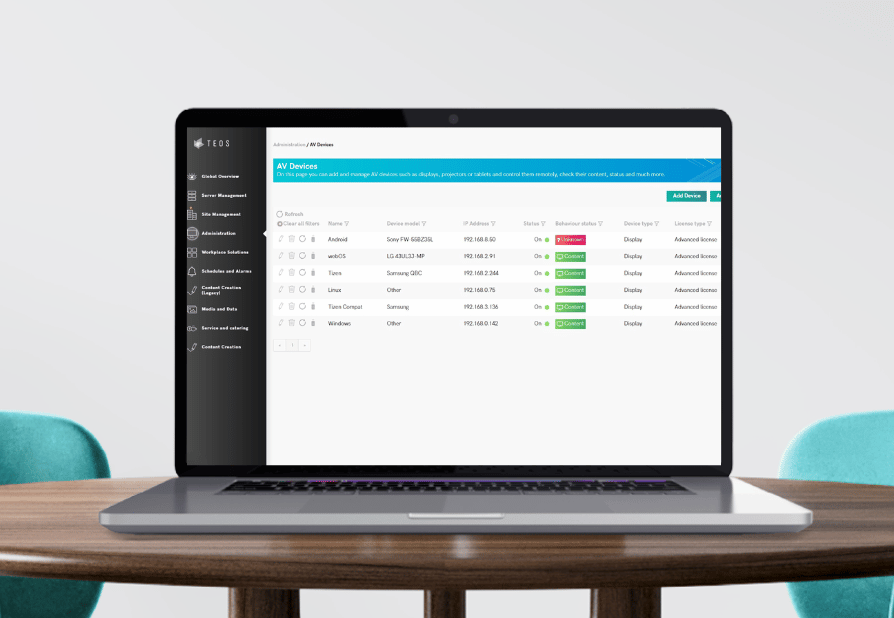
No more picking software based on which screens you already own. TEOS works across Samsung (Tizen), LG (webOS), Windows, and Sharp (Debian) plus support for Android, HTML5, and Raspberry Pi-based setups. Mix vendors, mix operating systems, and manage it all from one platform, whether it’s signage or remote device management.

A smarter API, built for more
Built to let you monitor and control your devices, pull real-time stats, and keep track of your licenses. All in one place. Whether you’re building custom integrations or just want deeper visibility into your workplace, it’s all there.
Every screen, in perfect sync
Play the exact same content across multiple devices, at exactly the same time. Whether it’s one room or an entire building, TEOS SyncPlay feature keeps every screen aligned. No delays, no mismatched timing, just one unified visual experience wherever your signage lives.

Now vendor-agnostic for Signage
Run your signage network on the hardware you choose. With the new TEOS App Management, you can manage TEOS Player versions across Tizen, webOS, Android, Windows and Linux from one place, with no separate tools for each platform. For Tizen and webOS displays, TEOS App Management also generates download links, so installing the player on new devices takes a few clicks.

Scan, name, play with TEOS Player
Setting up a new screen now takes only your phone. Once TEOS Player is installed, the display shows a QR code. Scan it, give the screen a name, and choose what it should play. That’s it: the player appears in TEOS Manage and starts showing your content right away. You don’t need a laptop or pairing codes, and you don’t have to go back to your desk to finish the job.

How to upgrade to TEOS 3.5?
Cloud customers
We handle your upgrade for free. Contact our support team (or we’ll contact you) to schedule a timeslot that suits you. Updating the apps on your devices remains your responsibility.
On-premise customers
Request your upgrade through our support team and we’ll provide a full installation guide so you can upgrade yourself. Prefer not to? Our team can handle it for you (billing may apply).
No minimum version required, no compatibility checks.

